PikScan Expenses User Manual
Platforms: iOS & Android · Offline · Data stays on your device
Short walkthrough: User guide (8 steps)
1. Introduction
PikScan Expenses turns travel receipts into structured expense notes. OCR runs on-device. No account. No PikScan cloud.
| Phase | Goal |
|---|---|
| Trip | Create a mission with dates, place, currency, budget |
| Scan | Capture receipts (OCR or manual), up to 10 in batch |
| Note | Generate expense note: submitted → approved / rejected |
| Export | CSV/Excel free · PDF & accounting formats on Premium |
2. Main navigation
| Tab | Role |
|---|---|
| Trips | List, create, activate, filter missions |
| Compare | Side-by-side two trips |
| Scan (center) | OCR one or batch, manual entry |
| Notes | Generate and track expense notes |
| Report | Budget, ROI, categories, export |
Settings (gear on Trips / Report): profile, language, biometric lock, backup, Premium.
3. Onboarding
- First launch shows 3 slides (create trip → scan → ROI).
- Create my first trip opens the trip form and activates it, then opens Scan.
- Skip goes to Scan (you still need an active trip to save receipts).
4. Trips tab
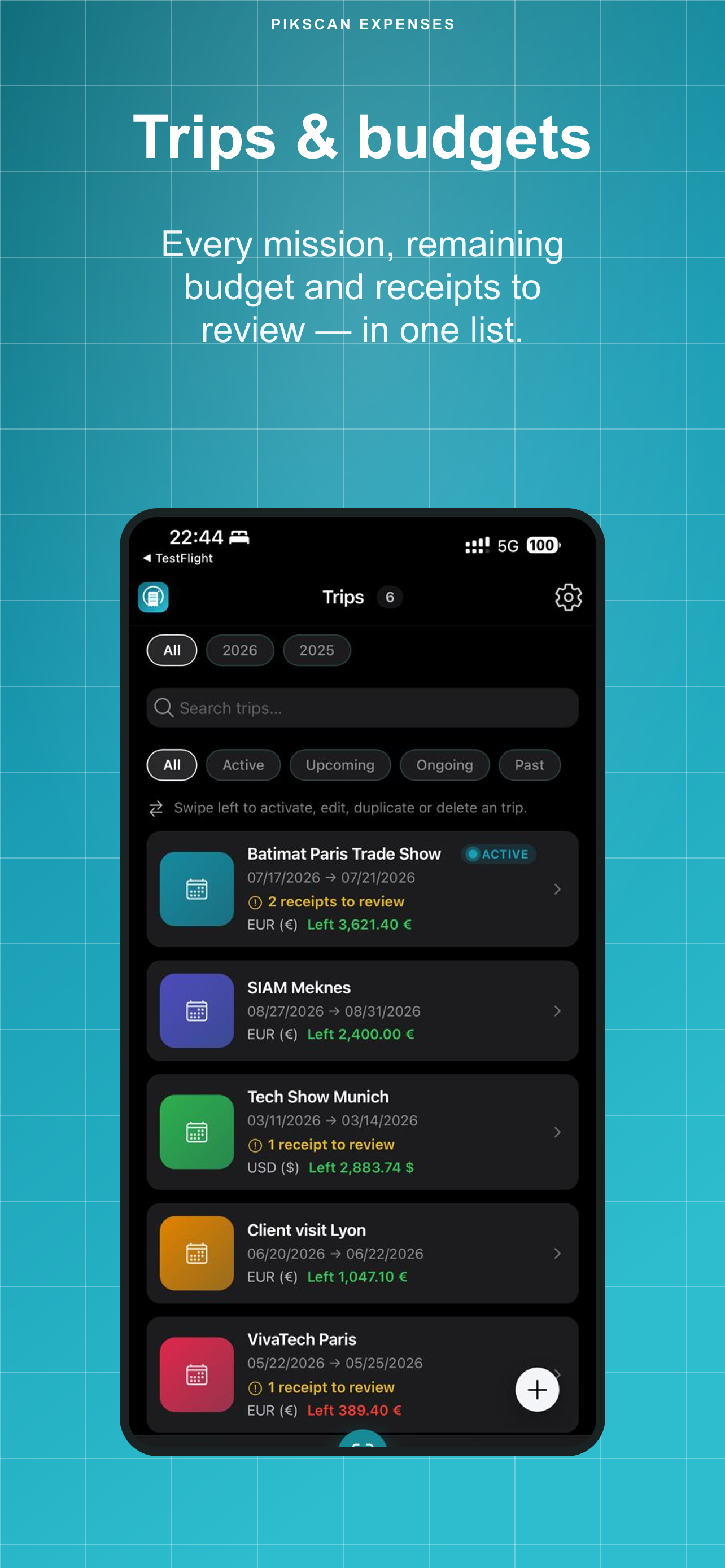
- + → name*, dates, city, venue, currency (+EUR rate if needed), planned budget, optional color.
- Only one trip can be active (required for Scan).
- Swipe: activate, edit, duplicate, delete.
- Filters: year chips, Active / Upcoming / Ongoing / Past, search.
- Open a trip → receipts list, budget bar, multi-currency, validate queue, link to Report.
5. Scan tab
- Needs an active trip. Banner + CTA if none.
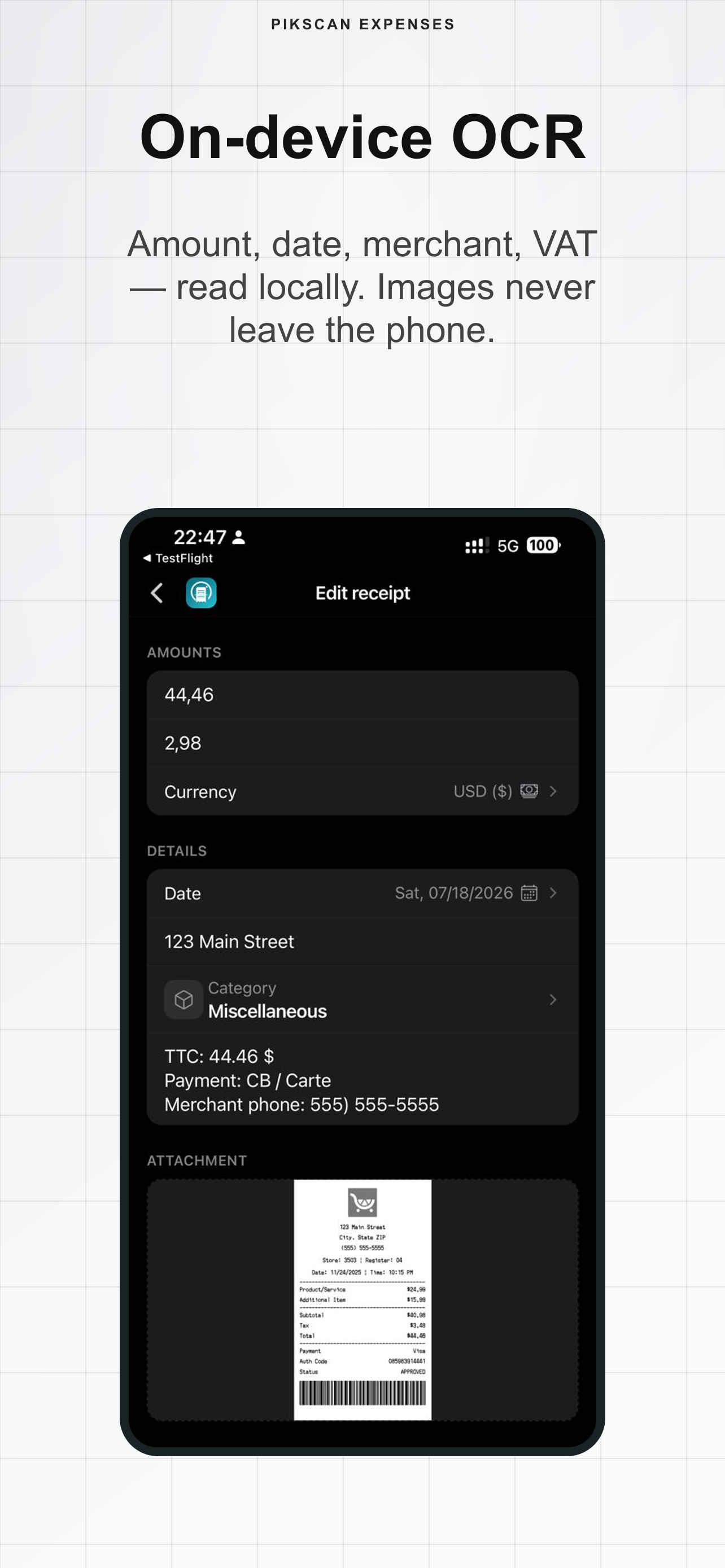
- Scan a receipt: one photo → OCR fields (amount, date, merchant, VAT, category) → save.
- Scan multiple: up to 10 photos, review queue, optional apply category to remaining.
- Manual entry: same fields without camera.
- Each saved receipt consumes 1 scan of the free quota (30). Deleting a receipt frees a scan.
- Duplicate detection may warn before save.
6. Notes tab
- Trips with receipts appear under Ready to generate.
- Generate a note → status Submitted.
- Statuses: Draft · Submitted · Approved · Rejected.
- If employee profile has Manager: Approve / Reject with optional comment.
- Menu ⋯: export PDF (Premium), CSV, resubmit, open trip.
7. Report tab
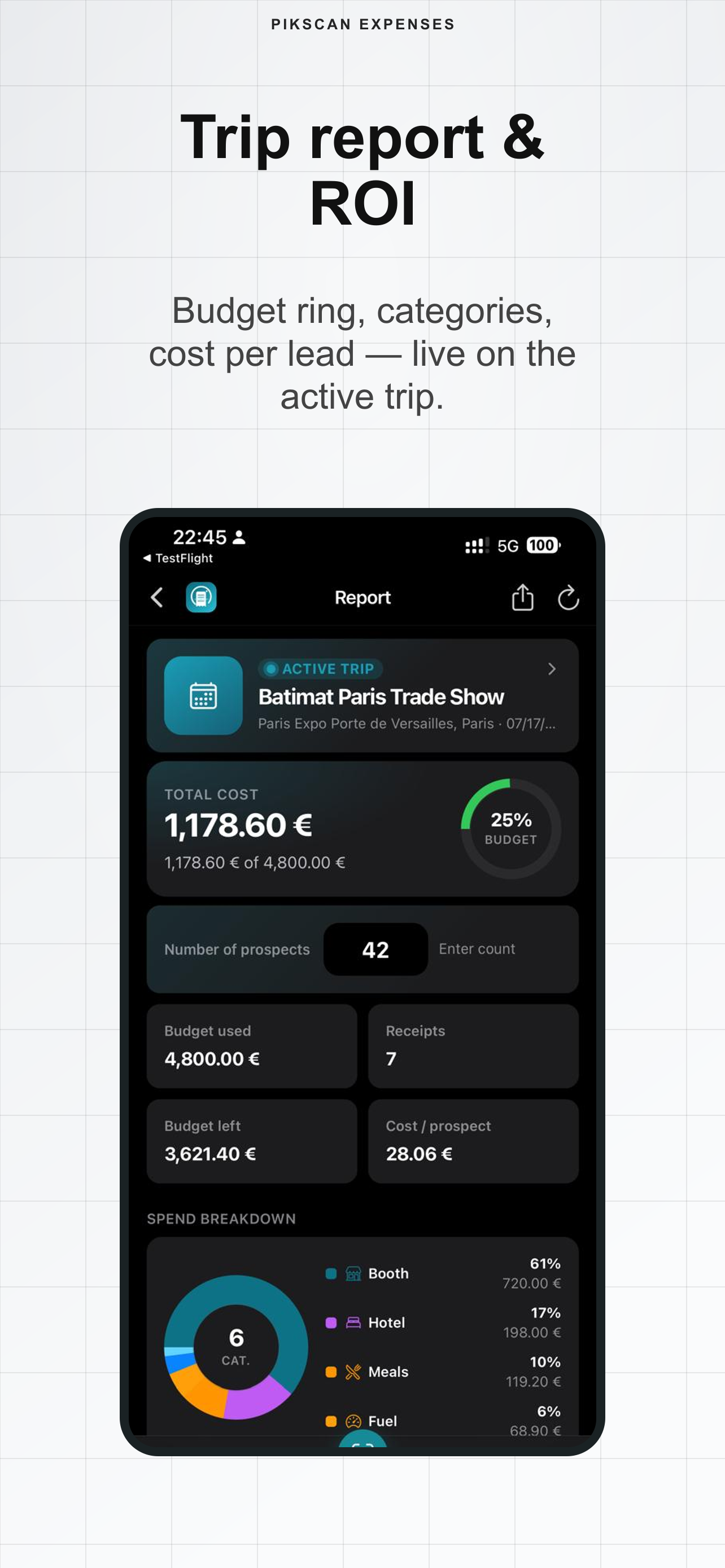
- Shows the active trip (or deep-link eventId).
- Total cost, budget ring %, receipts count, cost / prospect (editable prospect count).
- Category donut + breakdown; advanced VAT / duration stats.
- Expense-note workflow actions and export sheet.
8. Compare tab
- Pick year + trip A and year + trip B (min. 2 trips with receipts).
- Cost delta, duel metrics, shared categories. Swap A ↔ B.
9. Settings
- Profile: name, email, company, preferred currency, accounting format (FEC, Pennylane, QBO, Xero, DATEV…), Manager toggle.
- Language: FR, EN, ES, DE.
- Biometric lock: Face ID / fingerprint / device passcode when returning to the app.
- Backup: export JSON (free) or full ZIP with images (Premium). Restore merge or replace.
- Demo data and local analytics optional.
10. Export & backup
| Format | Plan |
|---|---|
| CSV, Excel | Free |
| PDF summary / note, email pack with photos | Premium |
| FEC, Pennylane, QuickBooks, Xero, DATEV, Sage, Wave, FreshBooks | Premium |
| JSON backup | Free |
| ZIP backup (data + images) | Premium |
| Restore .json / .zip | Free |
Exports are files you share yourself. Nothing is uploaded to PikScan servers.
11. Free vs Premium
| Free | Premium | |
|---|---|---|
| Scans | 30 | Unlimited |
| Report / Compare / Notes | ✓ | ✓ |
| CSV / Excel | ✓ | ✓ |
| PDF & accounting formats | : | ✓ |
| Full ZIP backup | : | ✓ |
12. Support
Email support@pikscan.com · Support page · Quick guide
13. Glossary
| Term | Meaning |
|---|---|
| Trip / Mission | Business travel or event with budget and receipts |
| Active trip | Mission currently linked to Scan / Report |
| Scan | One saved receipt (OCR or manual) against free quota |
| Expense note | Formal report generated from a trip, with approval workflow |
| FEC | French accounting ledger export format |